

Closed captioning translation starts with a reliable source, then branches into the tracks your employees need. Same-language captions convey speech and important sounds; translated subtitles carry speech into another language. Voiceover lets employees listen while watching a demonstration. Test each option in the player they use for training.
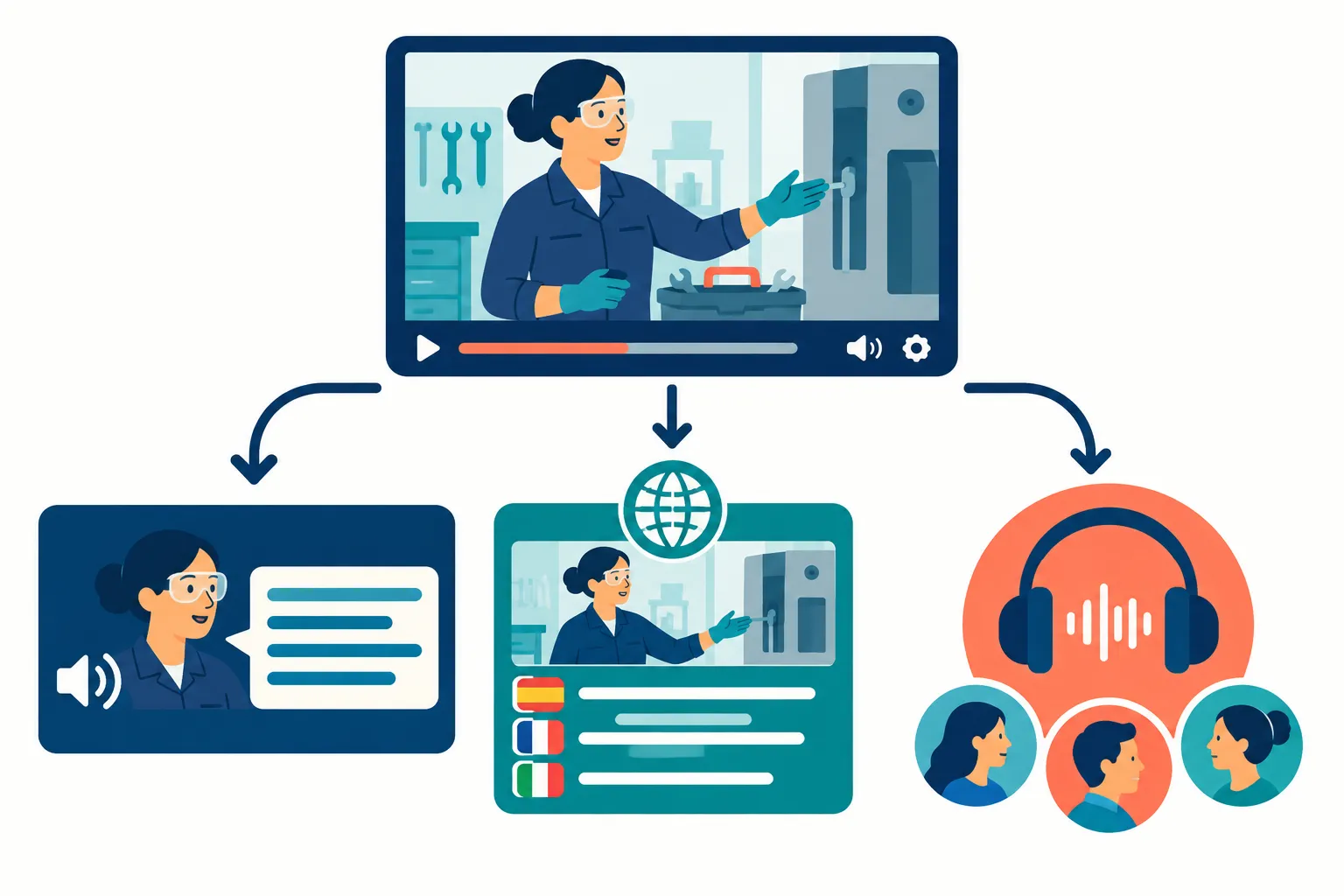
Closed captioning translation: three different jobs for one training video
|
Deliverable |
What the learner receives |
Best suited to |
What it does not solve by itself |
|---|---|---|---|
|
Same-language closed captions |
Toggleable text in the spoken language, including dialogue, speaker identification when needed and meaningful nonspeech audio |
Someone who cannot hear the soundtrack, or needs text alongside the original audio |
Understanding a language the learner does not know |
|
Translated subtitles |
Timed text rendering speech in a target language |
Someone who understands the target language in writing but not the original audio |
Full access to sounds, speaker changes or visual-only instructions unless those are explicitly included |
|
Localized voiceover |
Spoken translation over or in place of the original narration |
Learners who prefer listening, or who need to follow a demonstration without reading continuously |
Access for someone who cannot hear; that audio needs its own same-language captions |
“Captions are a text version of the speech and non-speech audio information needed to understand the content.” – W3C Web Accessibility Initiative
An order for “closed captioning translation” needs a more precise deliverable. Ask for translated subtitles when you need dialogue in another language. If Deaf and hard-of-hearing employees also need sound cues and speaker identification in that language, ask for target-language captions. Inspect the track itself; its label cannot tell you which cues made it in.
Suppose an alarm sounds before an instructor says “leave the room” in a safety demonstration. English captions should identify that alarm. Spanish subtitles limited to dialogue could miss it. Voiceover in Spanish gives employees a way to watch instead of read continuously, and the version still needs an appropriate text track for anyone who cannot hear it.
Build a source that can be translated
Use the final video cut to approve the transcript and time the source-language captions. Compare the words against the audio, especially names, acronyms, numbers and instructions. An error in the source can otherwise travel into every translation.
Inventory instructions that are not in the narration
Subtitles leave a button label embedded in the picture untouched. List the text employees need to finish the task: slides, form fields, software menus, safety labels, diagrams and quiz prompts. Translate the graphic or screen recording, add a timed explanation, or adapt the narration as the lesson requires. A spoken instruction to select a button should match the label on screen.
Give translators a glossary of product names, job roles, policy terms and words that stay in the source language. Explain ambiguous terms. In a safety module, for example, “lockout” must not turn into an instruction to lock a computer screen. The process owner should approve the wording before translators carry it into other modules.
Give translators context, not just caption segments
Send translators the video along with its transcript, captions, screen-text inventory and glossary. The segment “Select it now” makes sense only when they can see the screen and read the adjacent dialogue. Keep a master source version to track which language files need updating after an edit.
Choose the right language package
Choose tracks based on the languages employees use and the access they need.
|
Training situation |
Sensible package |
Why |
|---|---|---|
|
Employees understand spoken English but need access to its audio |
English captions and an English transcript |
Captions carry spoken words and meaningful sounds; a transcript supports review outside playback |
|
Employees read Spanish but the video speaks English |
English captions plus Spanish subtitles, with essential on-screen text localized |
Learners can follow the lesson in Spanish while the English caption track remains available |
|
Spanish-speaking employees need access without hearing |
A Spanish-language track that conveys speech and relevant audio information, plus localized visual instructions |
Dialogue-only Spanish subtitles may leave important sound cues out |
|
Learners need to watch a physical procedure rather than read through it |
Localized voiceover plus same-language captions, with translated screen text |
Audio frees attention for the demonstration; captions preserve text access |
|
A policy module will be reused in several regions |
One approved source, per-language terminology review and separate deliverables by locale |
Revision control is easier when every version traces back to the same cut |
Translated dialogue subtitles give employees language access. They do not, on their own, establish that a video meets accessibility requirements; those depend on its content, audience and applicable rules. If an English video uses a sound to give an instruction, convey that information in text for employees who cannot hear it in each language you intend to support.
Voiceover helps when employees need to keep their eyes on a machine, physical task or screen walkthrough. Compare the translated audio with the action to catch any timing mismatch. Caption the localized narration if you offer that version to employees who need text access.
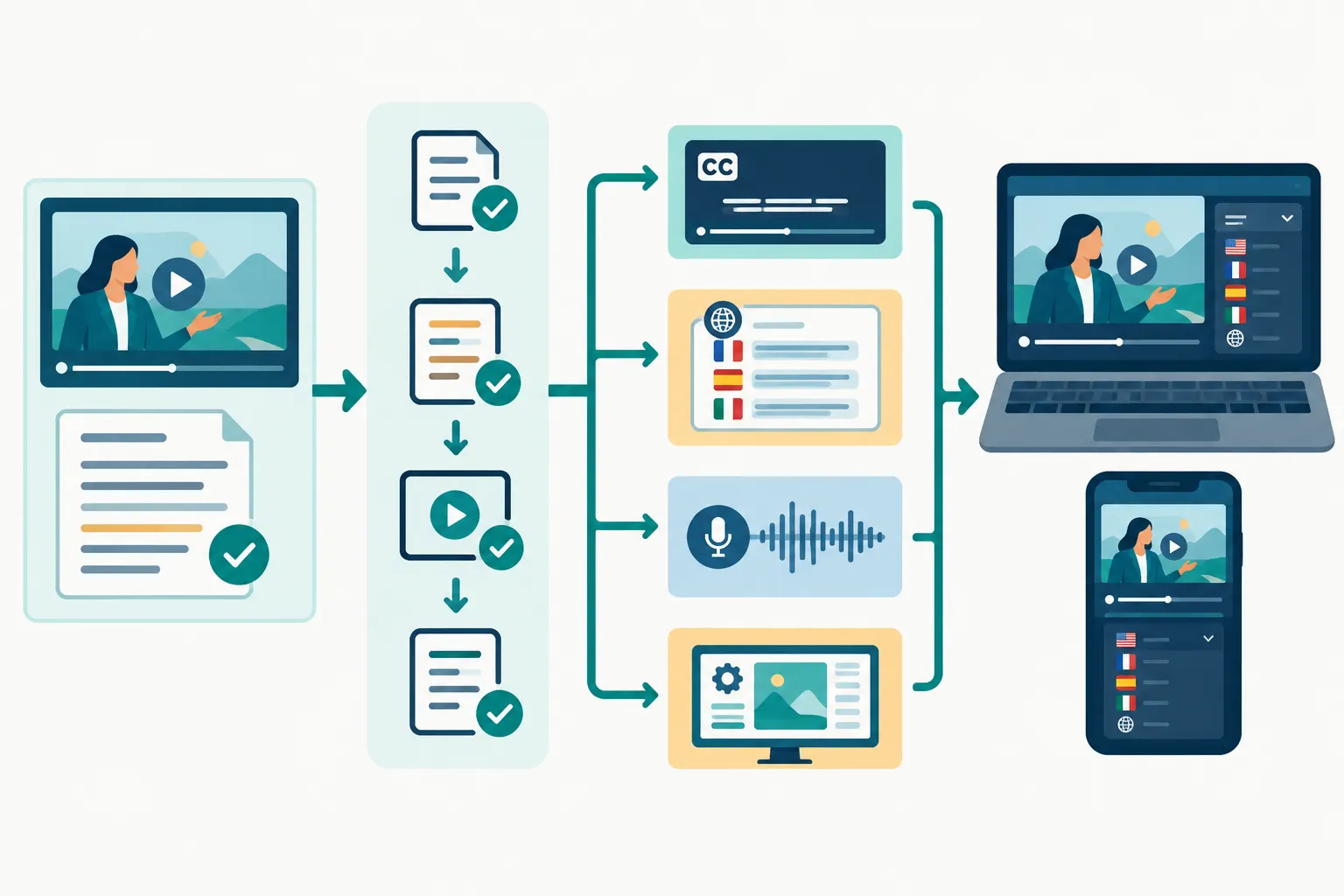
Produce and review each language track
-
Approve the source. Lock the video cut and correct the source transcript and captions. Record the version identifier used for translation.
-
Translate in context. Give a linguist the video and glossary. Machine-generated text can accelerate a first draft, but a person should review technical terms, instructions and meaning before release.
-
Adapt to the screen. Condense where needed without dropping an action, warning or condition. Adjust cue breaks and timing to allow the target-language text to be read while the relevant shot remains visible.
-
Review localized visuals and audio. Compare subtitles with labels, slides and spoken voiceover. If a learner is told to press a control, the control visible in the video should match the instruction.
-
Quality-check the export. Play the delivered file in the actual player, not only in an editor. Look for clipped text, misplaced cues, missing characters, incorrect language labels and tracks that cannot be selected.
-
Record approvals. Have a language reviewer and the training owner sign off on the instruction. Keep the approved transcript, glossary, track files and video version together for the next policy change.
A bilingual reviewer needs to watch the lesson, not only read the text. An accurate phrase can appear too late, or an instruction may conflict with the action on screen. Send the final wording for safety or regulated procedures to the subject-matter owner too.
Make the tracks usable in the LMS
Open the finished module through an employee account. The language menu should make sense without relying on filenames, captions should be selectable independently of audio, and the choice should survive a lesson or device change. On a phone, check that text leaves both the controls and the action visible.
Let employees select language tracks if the player supports them. Burned-in subtitles help when it cannot display a text track, though employees cannot turn them off or change languages, and the words may cover captions or controls. A transcript in the relevant language helps employees scan instructions or revisit terminology. It does not replace timed captions during playback.
If the LMS cannot offer separate audio and text options, note the limitation and distribute distinct accessible versions with clear language names. Test enrollment links and permissions as an employee, so the right person can open the version you prepared.
A practical default for multilingual training
For a reusable training module, commission an accurate source transcript and same-language captions first. Add translated subtitles in the languages employees need and localize essential on-screen text. Add voiceover where employees must watch the action closely. For employees who need text access in a translated language, request target-language captions that include meaningful audio cues.
Team Stream can coordinate captioning, translation, subtitling and voiceover in one language-access workflow, using human review alongside AI-enabled services where they fit. For a training owner managing several language tracks, that means one brief can cover the related deliverables. Send the final video, source materials, target languages, glossary, player requirements and access needs so the team can plan for the way employees will use each version.
FAQ
How to translate videos with captions?
Start with a corrected transcript and timed captions that match the final video. Translate with the video and a terminology glossary in view, then review timing, on-screen text and the exported language track in the player. If employees need access to meaningful sounds in the target language, request target-language captions rather than dialogue-only subtitles.
