

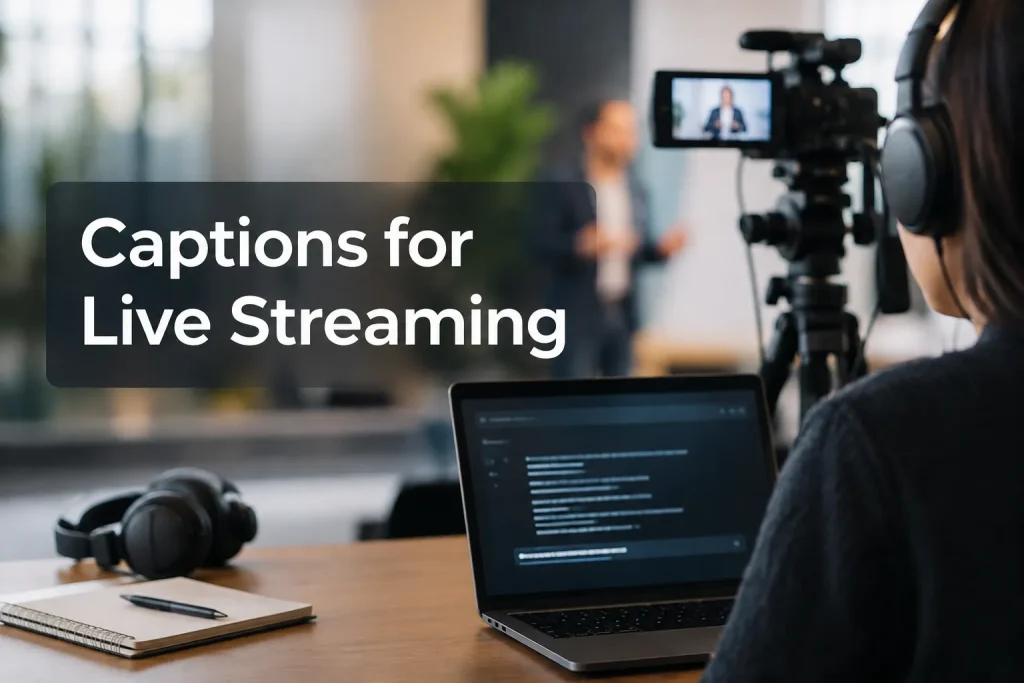
Captions for live streaming need to turn speech into text that viewers can read in time to follow the program. A captioner or speech recognition tool is one part of that job. Your team also needs owners for the audio feed, delivery route, stream settings, viewer test and recovery plan.
The word caption can also mean the text beneath a social-media post. That text can promote a livestream; live captions transcribe the speech and relevant sounds in the broadcast.
What kind of captions does your live stream need?
Closed captions are a selectable text track in a compatible player. Viewers can turn them on and adjust how they look where the platform allows it. Open captions are part of the video image, visible to everyone. A slide with a speaker’s name, a chat transcript and a social post description do not do the same job.
Closed captions give viewers control over the text when the destination supports a caption feed. Open captions travel in the video picture, so viewers cannot hide them. For a hybrid event, plan the room display and the online player as separate outputs. Captions on a venue screen tell you nothing about the remote viewer’s player.
The W3C’s WCAG 2.2 Level AA criterion for live synchronized media says:
“Captions are provided for all live audio content in synchronized media.” – W3C Web Content Accessibility Guidelines 2.2
|
Delivery choice |
What the viewer gets |
Producer trade-off |
|---|---|---|
|
Closed caption track |
Text they can switch on or off in a supported player |
The caption data must survive the encoder, platform and player path |
|
Open captions in the picture |
Text visible in the video itself |
No viewer toggle, and placement must avoid slides, lower thirds and other graphics |
|
Separate caption page |
Text in a second browser window or device |
Useful as an alternate route, but it is not a replacement for testing the main viewing experience |
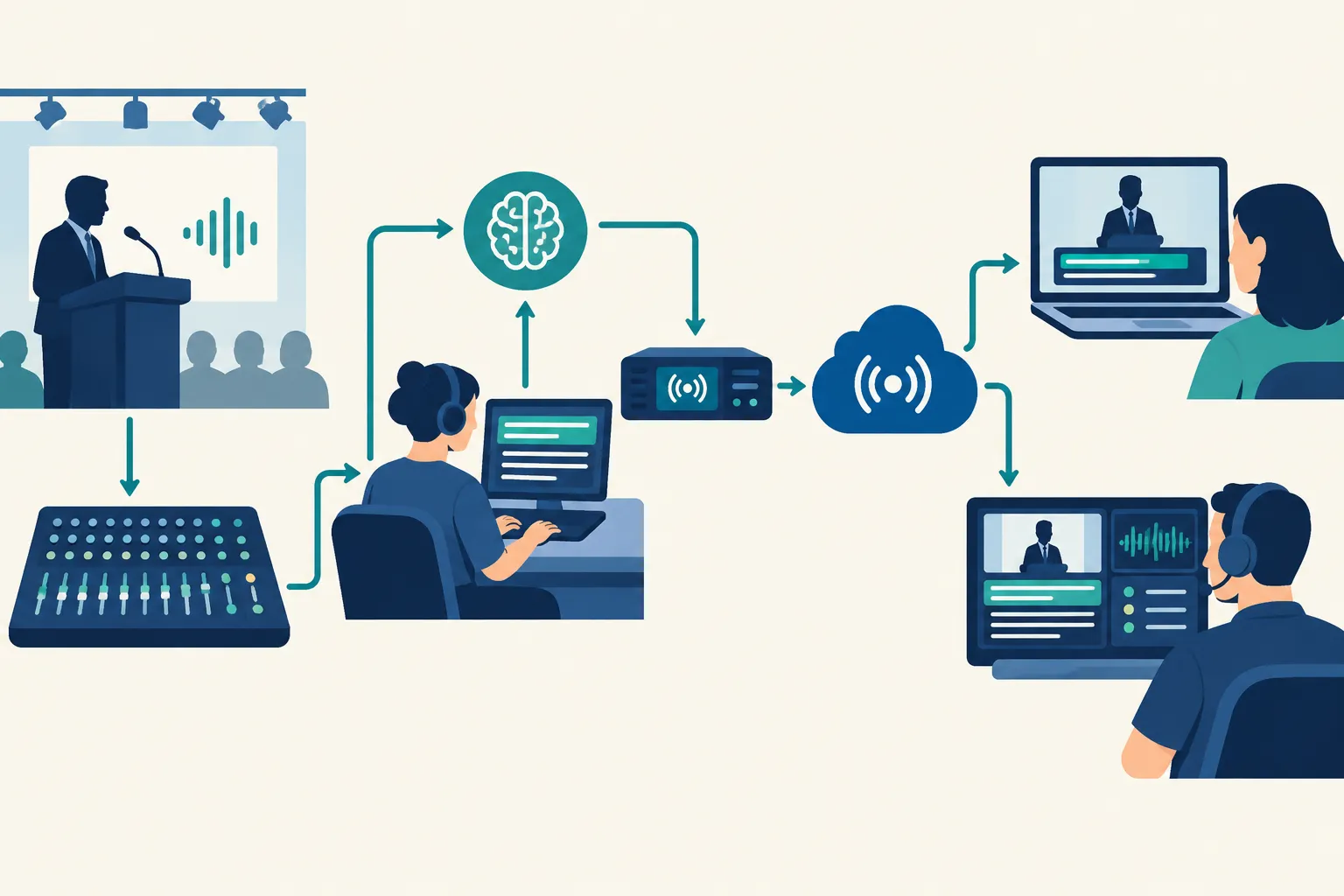
How captions for live streaming reach viewers
Caption quality begins at the mix. Neither a captioner nor an AI tool can reliably catch an off-mic panelist, an unheard audience question or two voices speaking at once. Send a clear feed of every voice and any video playback the audience will hear. If the stream includes interpretation, decide which languages need captions too. One English track may not serve everyone.
1. Capture and route clean audio
Ask the audio engineer for a dedicated speech mix for the captioner or AI system. It needs podium and handheld mics, remote speakers and playback audio. Keep music and effects below speech. Tell panelists to use their mics, and repeat audience questions into one if no audience mic is available.
During rehearsal, ask the caption operator to describe what comes through their feed. The house PA may sound clear while the separate stream mix misses a speaker. Have someone listen to the caption feed and the program sound that viewers receive.
2. Produce the text
A human real-time captioner writes or corrects text during the event. AI captioning transcribes the audio without an operator writing each word. Share the agenda, names, acronyms and specialist terms in advance. Give the human captioner a way to reach the show caller and flag speaker changes. If you use AI, assign someone to watch the output and act on errors.
3. Deliver it through the stream
Match the caption source’s output to the streaming platform’s input before show day. You may embed caption data in the encoder output or send text to the platform’s caption intake. Some platforms offer a caption layer or a separate viewer link. These routes are not interchangeable: text can appear at the caption desk yet never reach the public player.
For example, YouTube documents embedded 608/708 captions and a supported-software caption ingestion route for live events. Twitch documents encoder-supported caption transmission and a CC control for viewers. Pick the path your actual streaming configuration supports, rather than assuming that turning on a setting creates captions on its own.
4. Test as a viewer
Open the public stream on a separate device or account, turn on captions and read a full exchange. Check the player where people will watch, including a mobile view if it matters to your audience. Confirm that speaker turns and names are legible, text does not cover important graphics, and words appear close enough to the corresponding speech to follow the discussion.
If the player shows a CC button but no text, trace the path back through the platform, encoder, caption feed and audio. Text in the operator’s preview but not the public stream points to a delivery problem. Keep someone watching the viewer player during the event, not only during preflight.
Choose a caption source for the event
Choose the caption source with the program in mind. A keynote with prepared terms gives the operator or AI system a different task from a fast panel with audience Q&A. Consider the cost of an error, the audio conditions and who can watch the output.
|
Source |
Useful when |
Limit to plan around |
|---|---|---|
|
Professional human captioner |
Names, technical language, rapid exchanges or accessibility-critical programming need attentive handling |
Needs a scheduled operator, clean audio and a working delivery route |
|
AI live captioning |
Straightforward speech and limited production resources make automation practical |
Errors can appear without warning, especially with crosstalk, accents, names or poor audio |
|
AI with human oversight |
A producer can watch the output and escalate problems while using an automated source |
Monitoring alone cannot correct an unusable feed or restore a broken delivery path |
Allow for transmission delay with a human captioner, and leave setup time for AI. Concurrent sessions each need a caption source and a monitor for their own program feed. For a multilingual event, identify each feed’s language, who supplies translated captions and where viewers select them.
Plan for latency, then write a fallback
Live captions trail speech because a person or tool must hear and process the words. The encoder, platform and viewer’s player can add delay too. Do not promise a fixed offset without testing the whole path. In rehearsal, say a short phrase into a live mic and time its arrival in the public player. Repeat with video playback and a remote guest. Watch for text that arrives too late or appears before delayed video.
If synchronization is consistently off, the engineering team can adjust the video or caption path where the platform permits, then retest at the viewer. A broadcast delay may give a captioner more working time, but it also changes the audience’s live experience and must be part of the stream plan, not an improvised fix.
Write down who makes each fallback decision:
-
If audio to the caption source fails: audio engineering restores the dedicated feed or switches to a rehearsed backup feed; the caption operator reports when intelligible audio returns.
-
If text is generated but absent from the player: the streaming engineer checks caption ingestion or encoder settings while the producer tests the public player again. If available, publish the prearranged alternate caption link with clear viewer instructions.
-
If captions become unreadable: ask speakers to return to microphones and reduce cross-talk. If an AI feed keeps making critical errors, switch to the planned human source if one is booked and integrated.
-
If the stream itself restarts: check captions on the new public player session. Do not assume the caption connection survived the restart.
Name the person who calls each switch and the person who tells viewers about an alternate route. Rehearse that route while the team can still fix it.
Rehearse the complete viewer experience
Use the live show’s microphone paths, encoder, stream destination and player for rehearsal. Put a voice through each source, including stage and audience mics, a remote call and video playback. Test speaker changes, specialist names and pauses. Fix what you find, then run the public-player test again.
|
When |
Owner |
Confirm |
|---|---|---|
|
Before rehearsal |
Producer and caption lead |
Program, vocabulary, languages, source choice and fallback owner are agreed |
|
Technical rehearsal |
Audio and streaming engineers |
Caption source hears every required input; destination accepts the feed |
|
Viewer rehearsal |
Separate viewer-side monitor |
Text appears in the public player, is readable and follows speech |
|
Before going live |
Show caller |
Caption operator and engineers can reach one another; alternate route is ready |
|
During program |
Assigned monitor |
Captions remain present, timed and useful through transitions |
|
After program |
Content owner |
Recording has usable captions and corrections are arranged if needed |
For churches, conferences and corporate broadcasts with repeated formats, save the working routing diagram and show-day contact list. For a one-off hybrid event, test both the online stream and any in-room caption display. The same caption service may support both, but each audience needs its own acceptance check.
For the room-screen and equipment side of that plan, use Team Stream’s closed captioning equipment guide for live events.
What happens to captions after the stream?
Even a smooth show can leave mistakes in the live text. Treat the recording as a separate deliverable. See whether its player retains a caption track and whether exported clips have the right text. Correct names and consequential errors before you publish an on-demand version. A readable transcript does not, by itself, provide timed captions for video.
If you are deciding between captioning, interpreting and translation for a complex event, plan them together. A translated subtitle track, an interpreted audio channel and English live captions solve different audience needs. Team Stream can coordinate human captioning, AI-enabled language services, interpreting and event technician support around the actual show flow, whether the audience is in the room, remote or both.
For broader service options and multilingual display formats, see Team Stream’s live captioning for events overview.
Give captions a place in the run of show
Put captions on the run of show alongside audio and video. Choose a source for the program, feed it clean audio and test the public player. Give one person authority to activate the fallback. If you need interpreting, equipment and technician support as well, Team Stream can plan those handoffs with the caption feed.
FAQ
How do you caption your live?
Send clean program audio to a human captioner or an AI caption source, then deliver its text through a caption route supported by your stream destination. Test the public player with captions turned on, and assign someone to monitor it throughout the event.
Where can I find free live captions?
Some streaming platforms and device accessibility features offer automatic captions without a separate captioning contract. For a produced event, establish whether the free option reaches the public player and whether its accuracy is acceptable for your audience; a viewer’s device-level captions are not the same as a caption track supplied with the broadcast.
How do I turn on live captions?
As a viewer, select the CC control in a player that offers captions. As a producer, enabling a platform setting is only part of the job: you must also supply a compatible caption feed or enable the platform’s available automatic captioning, then verify the text on the public stream.
