

Offline captioning means creating captions for a prerecorded video. Captioners can replay the audio and correct their work before release. For a broadcast segment, training module or campaign video, a transcript alone will not give viewers timed access to speech and sound. The captions need to follow the final edit and work in the player your audience uses.
Commissioning captions? Send the locked picture, name the channels where it will play and designate someone to approve terminology. Ask for a timed caption track and proof that it plays correctly with the release version.
What offline captioning means
“Offline” describes when the captions are prepared. It says nothing about whether playback requires an internet connection. Live captioners keep pace with speech as it happens, while captioners working from a recording can pause and correct it. If you turn a live event into an on-demand video, use its live captions as a draft and retime them against the edited recording.
Captions cover speech and meaningful non-speech audio. Subtitles usually convey dialogue for viewers who do not understand the spoken language, so a dialogue-only track may leave out speaker changes, music and sound cues. If you need translation and accessibility, specify the target language and ask for those cues in the translated track.
For prerecorded video with audio, the W3C’s accessibility guideline says:
“Captions are provided for all prerecorded audio content in synchronized media, except when the media is a media alternative for text and is clearly labeled as such.” – W3C, WCAG 2.2
|
Request |
What the viewer gets |
Typical production decision |
|---|---|---|
|
Offline closed captions |
A timed audio-access track that viewers can switch on or off |
Supply a compatible caption file for each destination |
|
Offline open captions |
Captions permanently visible in the picture |
Render a separate video master and review readability on every output size |
|
Live captions |
Text produced during a live program or event |
Arrange real-time captioning, then revise the recording for replay |
|
Dialogue subtitles |
Spoken dialogue in text, often translated |
Add audio cues if the track is also intended to provide access to sound |
These labels describe different parts of the viewing experience. A prerecorded video can have open or closed captions, as well as subtitles in additional languages. Choose the file type after deciding what viewers need.
A production workflow for prerecorded video
1. Hand off the release edit and reference material
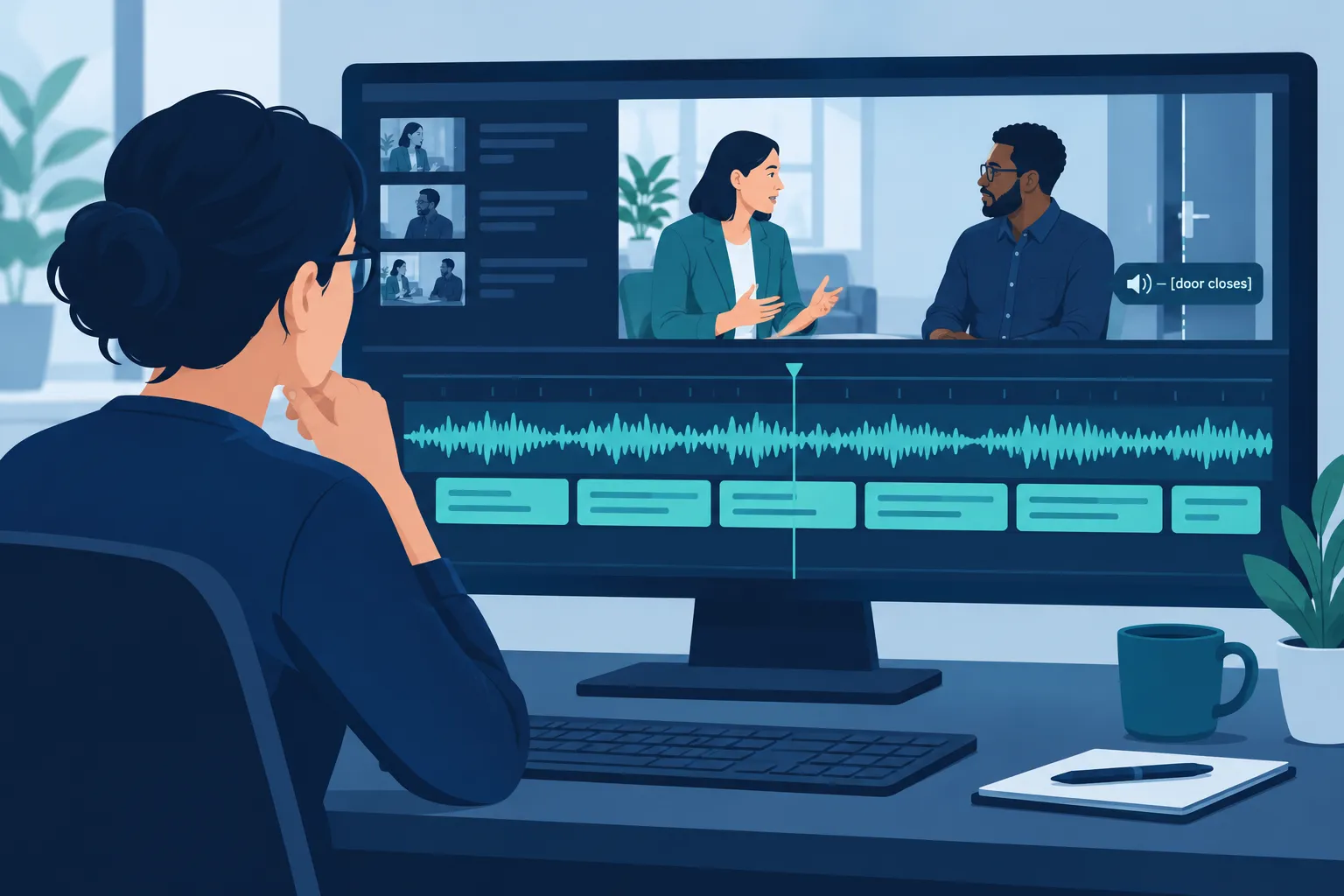
Give the captioner the video with its final audio mix and, if your workflow uses timecode, a frame-accurate reference. Include the script and approved names, acronyms or terminology. Flag off-camera speakers, foreign-language sections, lyrics, product names and shots where important text fills the lower screen. If the edit is still changing, mark the cut provisional and allow time to retime captions after picture lock.
In training videos, a product name spoken one way and written another way on a slide needs an editorial decision. The captioner should not silently change the speech to match the slide. Broadcast teams should send the destination’s technical delivery specification before caption work begins.
2. Review the transcript against the audio
Transcribe what the audience hears rather than the line in the script. Pay close attention to names, numbers, negatives, technical language and speech partly masked by the mix. Speech recognition can produce a first pass; a person still needs to resolve uncertain words against the audio and approved references.
If your team needs searchable copy or text for translation, request a clean transcript as a separate deliverable. The player still needs a synchronized caption file.
3. Add speaker and sound information
Identify a speaker when the picture alone does not make the voice clear, especially in interviews, voiceovers and group discussions. Include sounds that change meaning: for example, [door slams], [alarm sounds] or [applause]. Describe music when its presence or character is relevant; do not fill the screen with every faint background noise.
Keep labels consistent and place them near the action they describe. When two people speak at once, make sure the captions do not attribute both lines to one person. Include any house style for speaker IDs or sound cues in the brief.
4. Segment and time the captions
Break speech into readable units at natural phrase boundaries. Time each entry to its audio and leave enough display time to read it. Avoid revealing an answer or punch line before the speaker says it. Watch for rapid cuts, overlapping dialogue, music transitions and title cards.
Caption placement is part of the edit. A perfectly worded line can still hide a lower third, a safety instruction or an essential visual. If the destination supports repositioning, specify where a caption should move; otherwise, adjust the on-screen layout or choose a different delivery treatment.
5. Export and test the release package
Deliver the caption file matched to the exact video version going live. Check the platform’s accepted file type and any broadcast house specification first; do not assume a file that plays in one environment will display the same way in another. Retain the reviewed transcript and source caption project so later edits or language versions can be made without starting over.
Upload the file to a staging copy of the video, switch captions on and watch the beginning, speaker changes, dense passages and closing credits. Then review the whole asset for omissions and drift. Test the actual playback surface, including mobile or an embedded player if that is how the audience will watch.
Choose the deliverables before the work starts
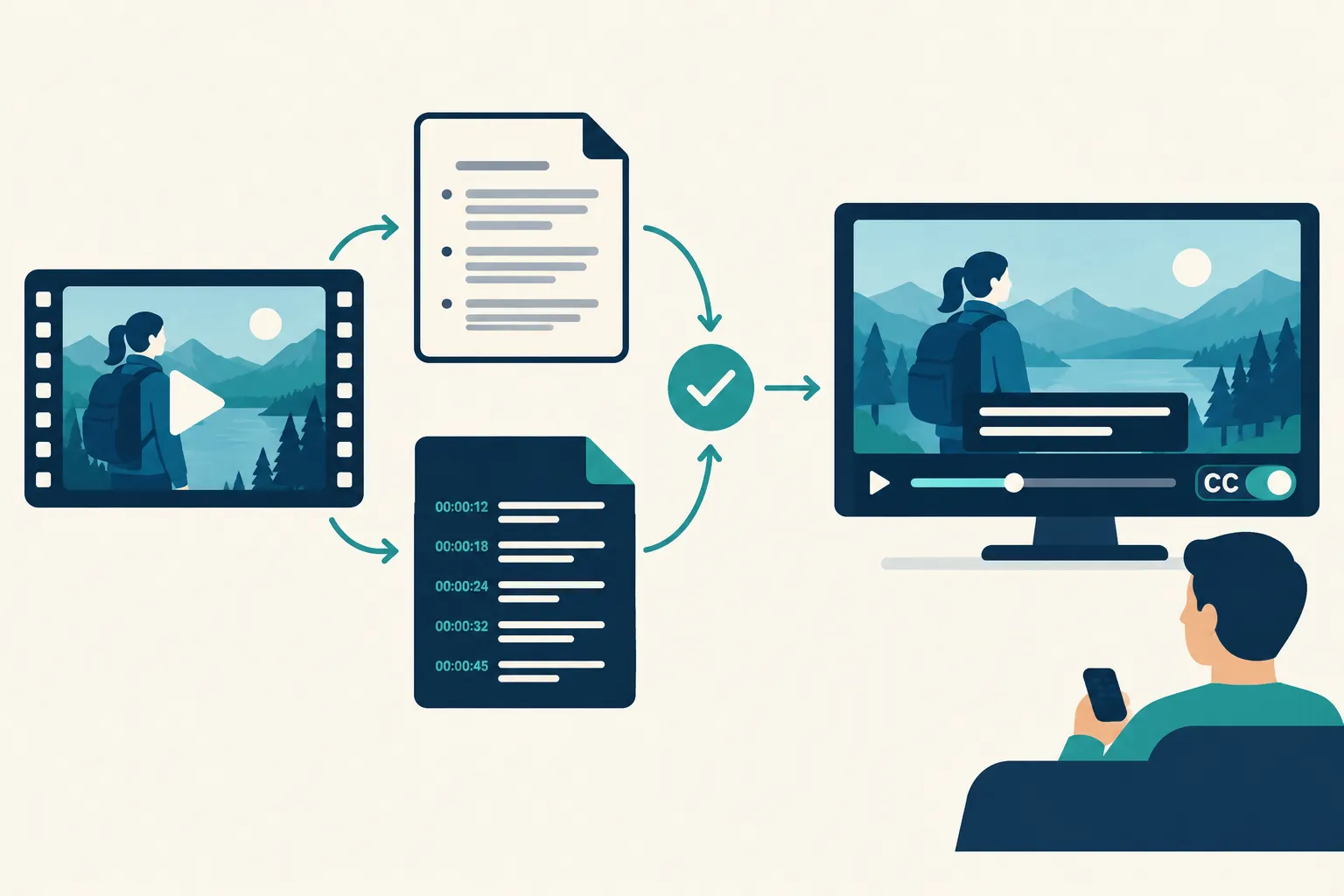
Choose files for the destination. A web player may accept WebVTT or SRT; a broadcaster or distributor may require a different timed-caption standard and its own conventions. Burning captions into the image calls for a new video master, not a sidecar file alone.
|
Deliverable |
Best use |
Acceptance question |
|---|---|---|
|
Reviewed transcript |
Search, translation preparation and editorial reference |
Does it match the approved audio and spell names correctly? |
|
Timed sidecar caption file, such as VTT or SRT |
Upload to a player that accepts that format |
Does the destination import it and display all cues in sync? |
|
Distributor-specified caption asset |
Broadcast or platform delivery with a required spec |
Does it pass that destination’s ingest and placement requirements? |
|
Open-caption video master |
Playback that cannot depend on a selectable caption track |
Are text size, contrast and placement readable on the release display? |
|
Additional-language track |
Multilingual release |
Is it a dialogue translation or an accessible track with sound information? |
An order for “a captioned MP4” leaves a crucial question unanswered: do you want a selectable track, captions rendered into the picture, or both? Each produces a different viewing experience.
Put these details in the commissioning brief
Give the captioner enough detail to quote for the version your team plans to publish:
-
Asset and schedule: Final runtime, language, number of videos, picture-lock date, delivery deadline and who will receive files.
-
Destination: Hosting player, broadcast outlet, learning platform or social channel; required format, frame-rate or timecode conventions when supplied by the destination.
-
Editorial references: Script, glossary, speaker names, approved brand spelling, known inaudible sections and any translation requirements.
-
Access treatment: Closed or open captions, sound-effect and music cues, speaker identification, placement restrictions and any house style.
-
Approval route: One owner for transcript questions, one owner for technical ingest and a clear point at which revisions to the video trigger caption updates.
If a marketing cut gets a new end card or a training module loses a scene, its old captions may be out of sync. Give the video and caption file matching version identifiers, then have the publisher test that pair. For a release across several channels, list each destination and request the outputs each one needs.
Final quality-control checklist
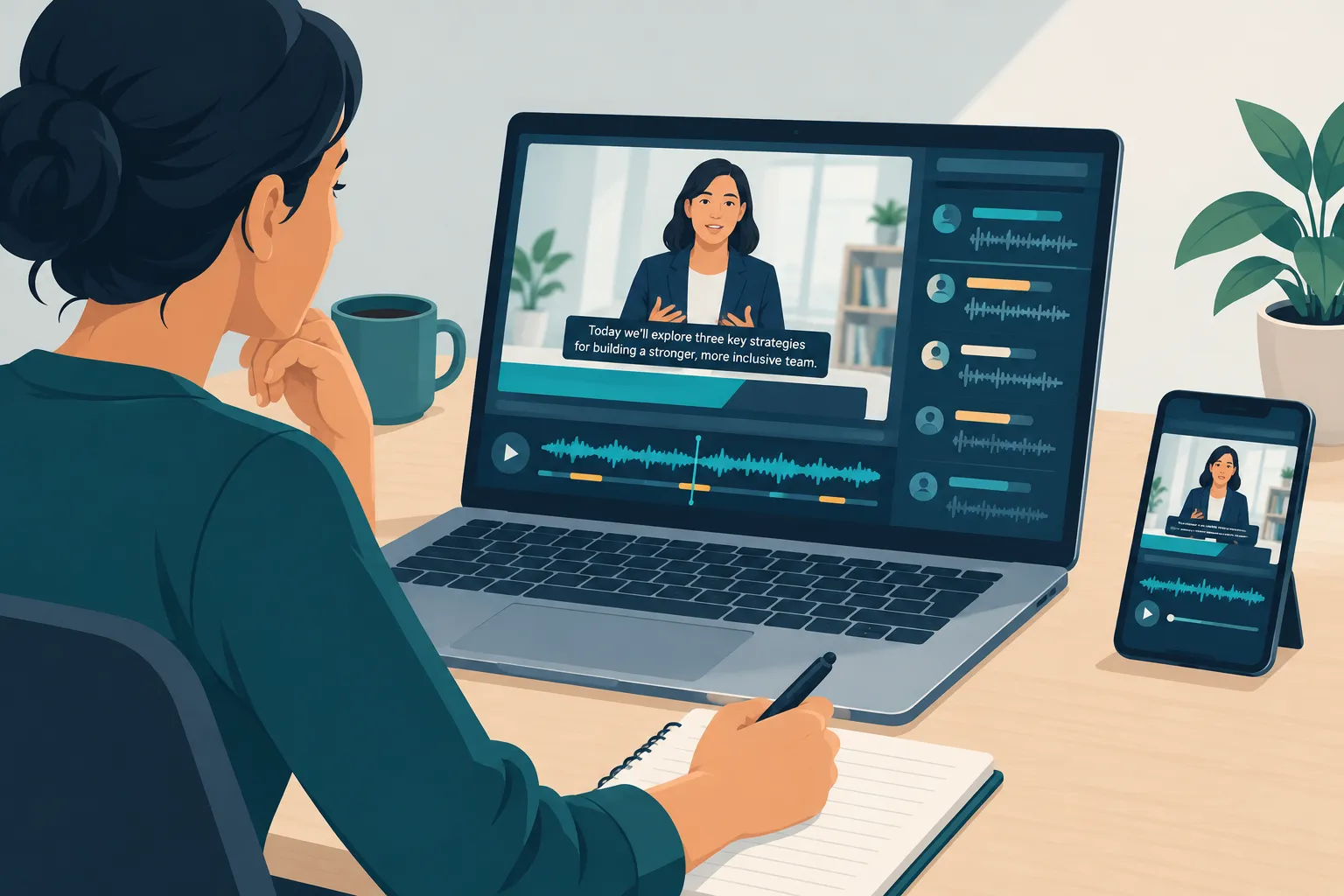
Use the release file, not the editor’s preview. Run through these checks before signing off:
“Equal access requires that the meaning and intention of the material is completely preserved.” – Described and Captioned Media Program, Captioning Key
-
Completeness: The first and last spoken lines, meaningful audio cues and credits-related speech are present.
-
Accuracy: Names, numbers, negations and specialist terms match the audio and approved references.
-
Identification: Off-screen speakers and significant sounds are understandable without relying on hearing.
-
Timing: Captions appear with the audio, stay readable and do not drift after edits or ad breaks.
-
Placement: Text does not block lower thirds, graphics, demonstrations or other essential visuals.
-
Playback: The track loads and toggles as intended on the published player; any open-caption master remains legible at the intended size.
-
Version control: The approved caption file is attached to the approved video cut in each delivery destination.
Fix the release file and retest it after changes. A caption file can pass a text review and still fail when a player strips positioning, a line collides with graphics or the wrong edit gets published.
Make the finished video accessible
Viewers need the essential speech and sound information at the right moment, in a form they can read on your publishing platform. A raw transcript or untouched auto-generated track will not provide that experience.
Team Stream provides closed captioning and subtitling alongside live captioning for events and broadcasts. For a release with several cuts, channels or languages, share the final masters, destination specs and approval contacts. That gives the team what it needs to plan a tailored handoff before launch day.
FAQ
How to get automated captions?
Use speech recognition to generate a first draft from the finished video, then review the words, speakers, sound cues and timing against the audio. Export a file your publishing platform accepts and test it in the release player before publishing.
Is open caption just subtitles?
No. “Open” means the text is permanently visible in the video; “subtitles” describes text that typically conveys dialogue, often in another language. Open captions can include speech, speaker identification and important sound cues, while dialogue-only subtitles may not.
What company does closed captioning?
Team Stream provides closed captioning as part of its language-access services. When requesting service for prerecorded video, share the release master, destination requirements, language needs and approval deadline so the deliverables fit the way the video will be shown.
