


Live subtitles turn speech into text during meetings, webinars and live events. If you organize one, make sure attendees can read the text on the screens they use. Plan for the languages they need and for a caption feed that might fail.
First, find out who needs text and where they will watch. That gives you a basis for choosing built-in captions, a professional captioner or a managed setup. Translated subtitles help people follow another language; attendees who need to speak and respond may also need interpreting.
What are live subtitles?
Event teams often call any text that appears alongside speech live subtitles. The format matters:
-
Live captions represent speech as it happens and may also identify speakers or relevant non-speech audio. They are commonly used to support people who are Deaf or hard of hearing.
-
Live translated subtitles show spoken content in another language. They help a viewer follow a presentation but may leave out meaningful sound information.
-
Prepared subtitles and closed captions are made or edited for recorded video. A live feed cannot be edited before the audience sees it, though its recording can be corrected later.
“Closed” tells you that viewers can turn the text on or off. It says nothing about whether the event is live. Text burned into a video picture stays visible to everyone; a separate transcript can appear in a browser or on a phone.
For live synchronized video, the W3C’s WCAG 2.1 Level AA criterion states:
“Captions are provided for all live audio content in synchronized media.” – W3C, WCAG 2.1
The criterion applies to live audio in synchronized media. It does not prescribe a single delivery method for every meeting format.
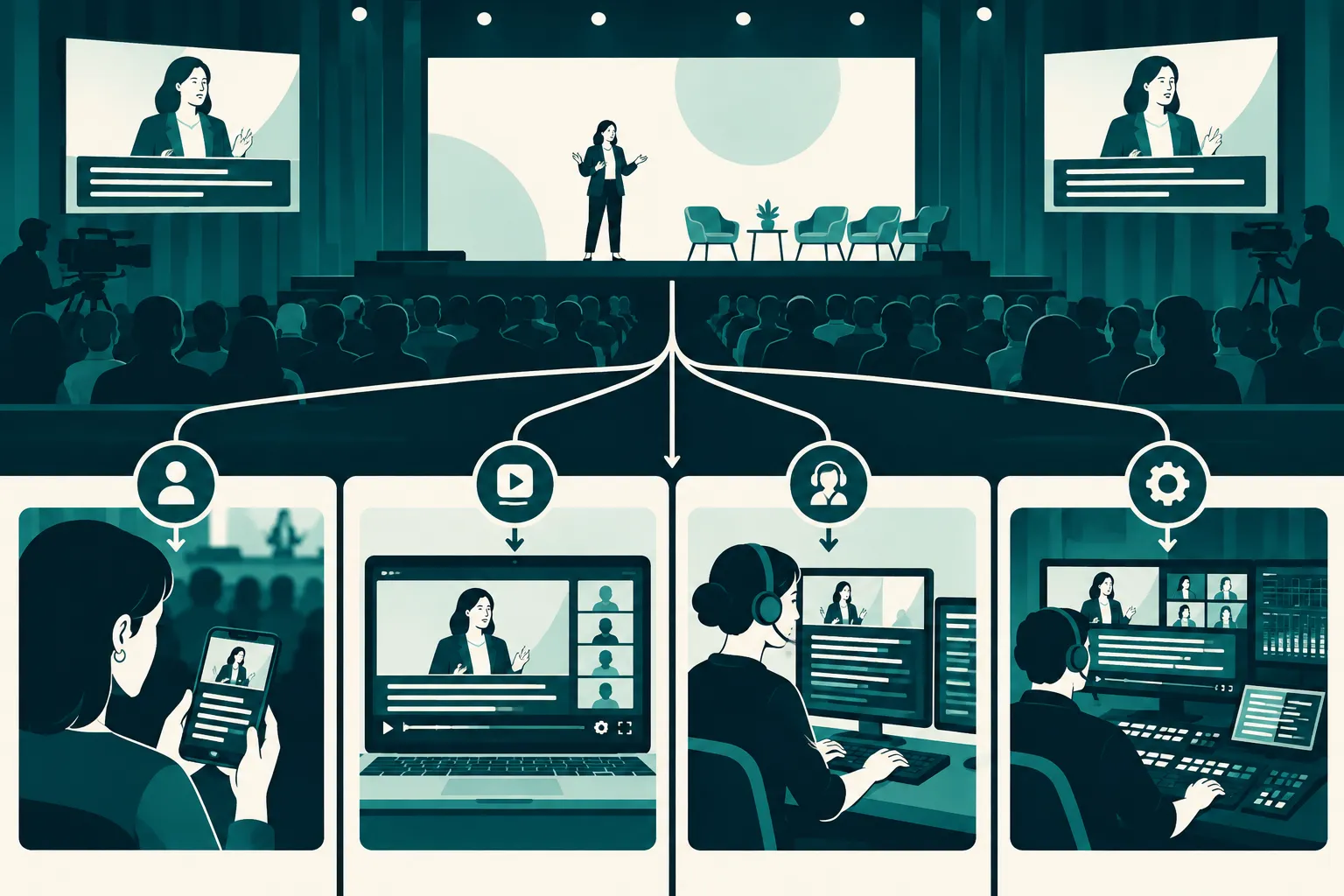
Four ways to provide live text
|
Approach |
Where attendees see it |
Useful when |
Main constraint |
|---|---|---|---|
|
Device live-caption feature |
On an attendee’s own device |
Someone needs individual assistance with audio they can access |
The producer does not control what that device hears or how its text is shared |
|
Meeting or streaming platform auto-captions |
In the supported meeting or player interface |
A straightforward, low-stakes meeting with clean audio |
Availability, display and language options depend on the platform and participant settings |
|
CART or professional real-time captioning |
In a player, browser, display or other connected output, depending on setup |
Accessibility needs call for a trained human following the event |
The captioner needs a reliable audio feed and a delivery path to each audience |
|
Managed live subtitle support |
Across planned onsite and online outputs |
Multiple rooms, audiences, languages or production systems must work together |
Requires advance coordination of audio, integration and operators |
Device features are personal tools, not event distribution
A device can caption audio it receives. It may help one attendee, but it tells you little about what a remote viewer or someone at the back of the room can see. Offer an event-wide access route as well.
Platform auto-captions are a starting point
Platform captioning can be convenient for an internal meeting. It uses the audio and features inside that platform. If you also send the meeting to live streams or room screens, test what appears at each destination. Watch for errors in names, technical terms and overlapping speech.
CART brings a human into the live workflow
Communication Access Realtime Translation (CART) uses a trained captioner to produce text as people speak. Despite the name, it does not mean translation into another language. Share speaker names, the agenda and a glossary so the captioner can prepare for technical terms and questions.
The captioner needs clear audio; attendees need a way to see the text. Plan both connections. A caption feed that misses the room display or online player does not help that audience.
Managed support connects the pieces
At a hybrid conference, the room may need a caption display while remote viewers use selectable text. Some attendees may prefer a phone view. Managed support ties those outputs to audio routing, technicians and a backup plan. Team Stream offers live captioning, interpreting, equipment and event technician support for that setup.
Where live translation subtitles fit
Live translation subtitles add a language step to speech-to-text delivery. A typical route is speaker audio → transcription → translation → audience display. Each handoff can add delay or errors. A wrong name or missed “not” in the source text may also appear wrong in translation.
Translated text can help multilingual attendees follow a keynote. In a workshop, attendees may need to ask questions or respond quickly. Spoken interpreting can support that exchange, alongside captions.
AI-powered live subtitles translation can help people grasp a presentation. Legal, safety-critical, sensitive and technical sessions call for human expertise, advance terminology and a way to respond if the feed fails. Translated text alone may leave some access and language needs unmet.
Plan the attendee experience before you choose a supplier
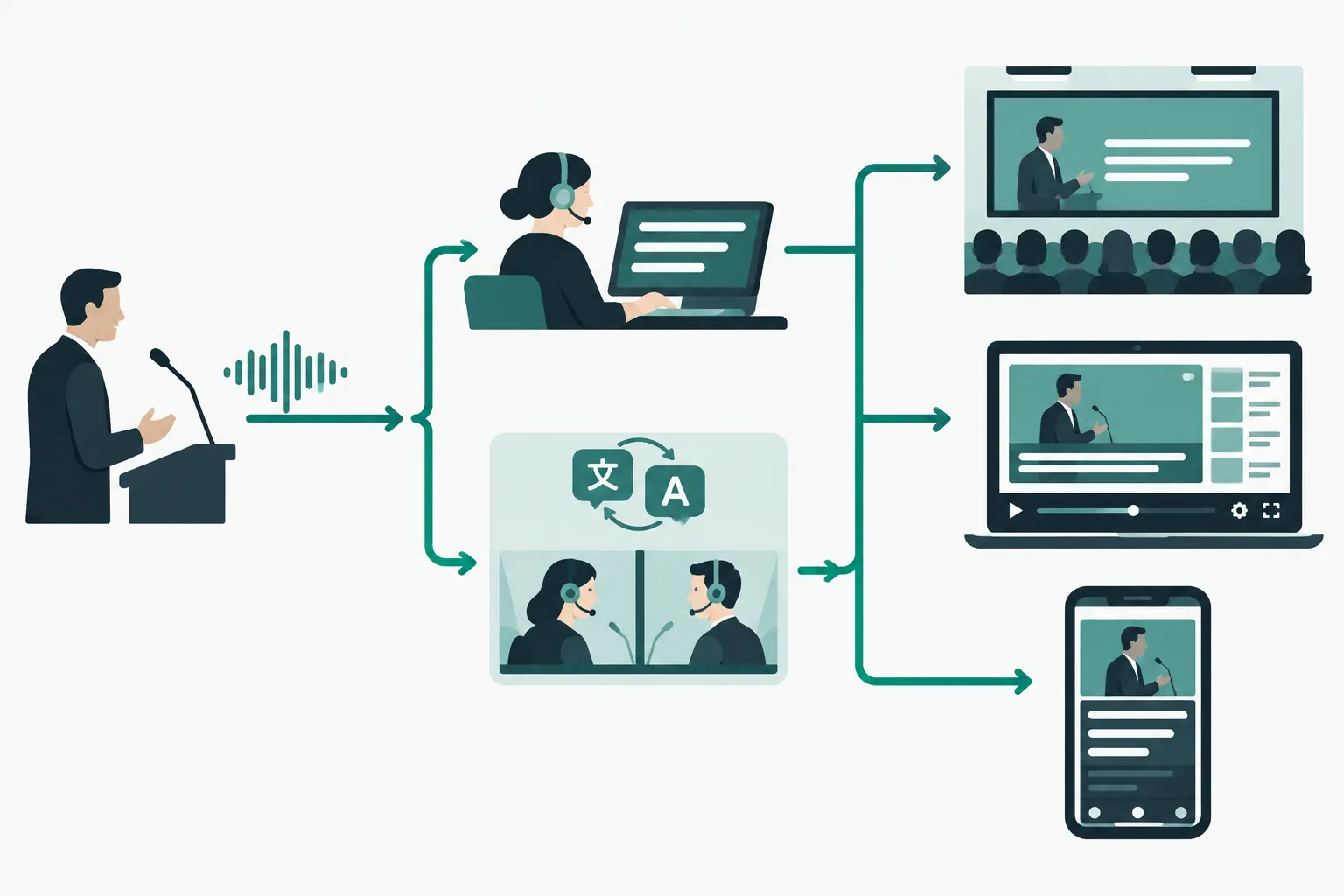
List the places where people will watch or listen. Use that list to decide where text must appear:
|
Audience |
Access question |
Likely output to plan |
|---|---|---|
|
In-room attendee |
Can text be read from their seat without hiding the slides? |
Room display or personal-device text view |
|
Remote attendee |
Can they turn text on in the actual player they will use? |
Player captions or an accessible companion view |
|
Multilingual attendee |
Which language do they need, and can they ask questions? |
Translated text, interpreting or both |
|
Replay viewer |
Will errors in the live text be corrected afterward? |
Edited captions and subtitles for the recording |
Registration is a good time to ask about access and language needs. Allow for later requests too. Tell attendees where the text will appear before the first speaker starts. For projected captions, look at the font size, contrast and sightlines from the seats, not only the control desk.
Give captioners and systems usable audio
Give the captioner or system a direct speech feed when you can; a microphone pointed at the room loudspeakers is a weaker source. Include audience questions, remote panelists and video playback in the audio plan. Presenters should use microphones and let one person speak at a time. Send names, acronyms, the agenda and key terms ahead of time, then pass changes to the operator or captioner.
Check the complete delivery path
Trace the text from speaker to captioner or speech-recognition system, through translation if needed, and into the player or display. Give someone responsibility for each handoff. Test player captions with a standard attendee account. For a second-screen view, open the link on a phone using the venue network.
A practical run-of-show checklist
Before the event
-
Record the requested languages, access needs, event format and all viewing destinations.
-
Choose the captioning and interpreting approach for each session. Name a production contact for questions.
-
Share speaker names, slides, agenda and terminology with the people preparing the live text.
-
Rehearse with real microphones, remote speakers, playback clips and the final player or room display. Include a question from the audience.
-
Agree on the backup if a feed, network connection or captioner drops out, and decide who tells attendees what changed.
During the event
Watch the attendee view as well as the source feed. Look for timing problems, hard-to-read text, unclear speaker changes and wrong language selections. The stage manager, audio team and captioning or interpreting team need a way to reach each other. If access fails, use a channel the affected audience can receive to explain the issue, then switch to the backup.
After the event
Save the live transcript as a working record. Before publishing the recording, correct names, terms and timing in its captions. For translated subtitles, edit against the finished source transcript; the live translation is a starting point, not final copy.
How to choose the right level of support
Built-in captions can serve a short internal conversation on one platform if attendees can use them. Plan professional captioning for a public event, specialized content or a stated access need, and test the result. Across multiple rooms, streams or languages, someone must own the route from the microphone to each attendee screen.
Team Stream can combine real-time captioning, interpreting, AI-enabled language services, equipment and technician support for in-person, virtual and hybrid formats. Before a planning call, write down which speakers each audience needs to understand, which languages they use and where they will see the text. Those details give the team something concrete to build around.
Conclusion
Build live subtitles into the production plan. Platform captions may be enough for one meeting; a hybrid or multilingual event often needs professional captioning, interpreting and someone managing delivery. Ask Team Stream to map the audio, text and language channels before you lock the run of show.
FAQ
How to get live Captions?
For an event, choose a caption source, such as the meeting platform or a professional real-time captioner. Then send its text to the screen or player attendees use and tell them how to turn captions on or open the text view. Test that path with a viewer before the event starts.
How to put subtitles on streaming?
Choose a live caption source, then connect its output to the streaming player or a companion text view that your viewers can open. Test the full path with an attendee account, including audio from panelists and audience questions. If viewers need another language, add a live translation route and assess whether interpreting is also needed.
