

Google Meet real time translation works best when you know how each person will follow the meeting. Some attendees want translated text on screen; others need spoken translation. A webinar may also need captions for people who cannot rely on the audio. Those needs lead to different choices.
Meet offers translated captions on eligible Workspace editions, while speech translation covers a smaller set of language pairs. For an important event, you may also need a human interpreter or live captioner.
What Google Meet translates
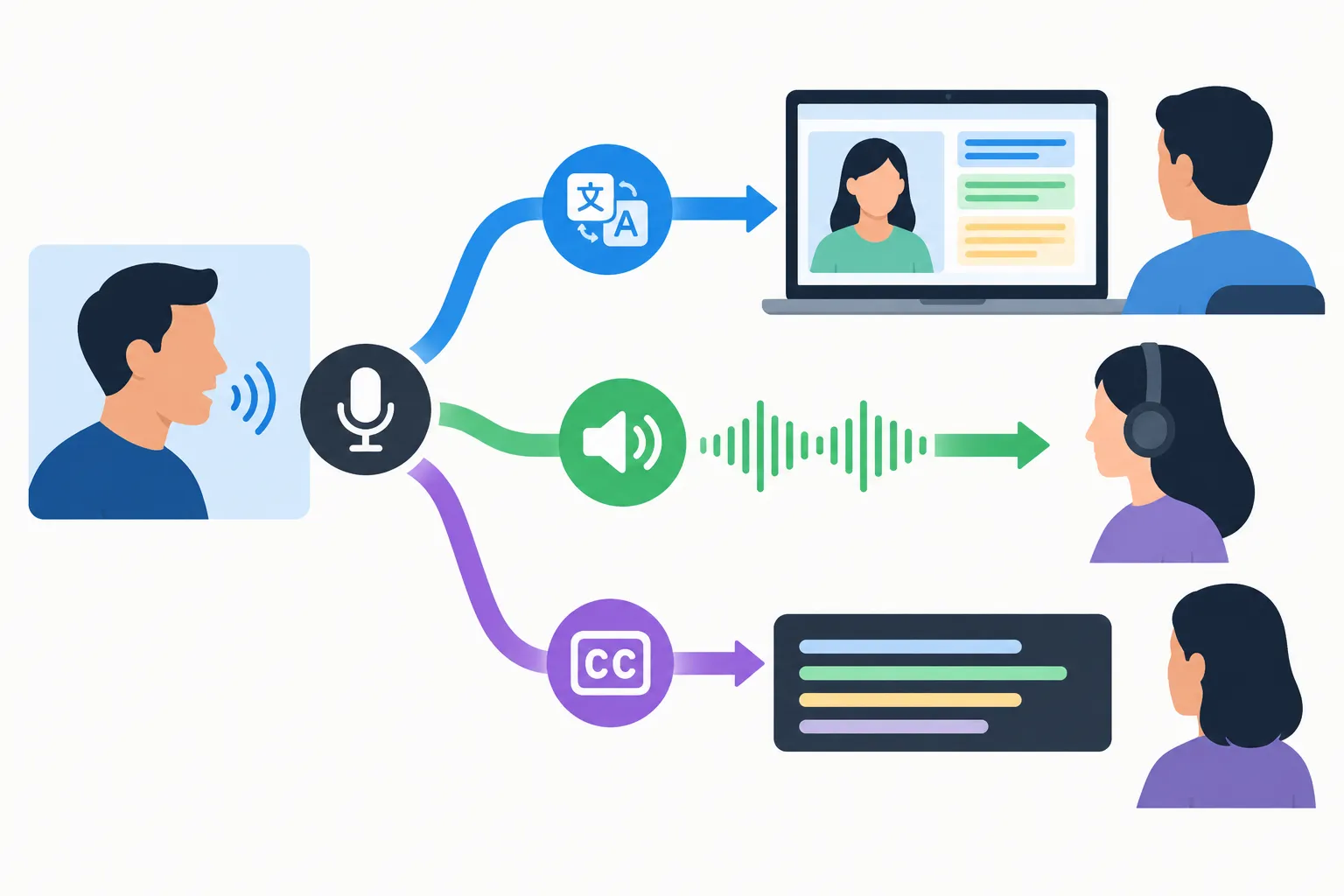
Choose by the output an attendee will use:
|
Experience |
What an attendee gets |
Useful for |
What it does not provide |
|---|---|---|---|
|
Live captions |
Text in the spoken language |
Following speech without relying only on audio |
Translation into another language |
|
Translated captions |
On-screen text in a selected language |
Reading along in another language |
Spoken interpretation or a guaranteed accurate transcript |
|
Speech translation |
Translated spoken audio during the call |
Conversational listening across a supported language pair |
Every language pair or a translated audio recording |
Translated captions appear as text on screen. That may be comfortable in a short team briefing. During a webinar, attendees have to watch the slides and chat as well, which makes reading along harder. Someone who needs text access will still need captions even if Meet supplies a dubbed voice.
Google’s translated-captions documentation lists Business Standard, Business Plus, Enterprise Standard, Enterprise Plus, and Google AI Pro for Education as eligible editions. Its language list includes Arabic, Hindi, Japanese, Korean, Spanish, and Vietnamese. Google warns that availability may still be rolling out. These are caption languages, not necessarily speech translation languages.
What speech translation changes
With speech translation, an attendee hears AI-translated audio instead of reading translated words. Google made it available on select Workspace plans on January 27, 2026. It works in both directions between English and Spanish, French, German, Portuguese, or Italian. A Google Meet call can use only one language pair at a time.
“Speech translation allows participants to speak in their native language while others hear the translation in theirs.” – Google Workspace Updates
If a colleague asks for “Google Meet live translation,” find out whether they expect captions or audio. Speech translation may suit a recurring English-Spanish call. For a presentation with Spanish, Korean, and Arabic listeners, you need another way to deliver spoken language access to each group, even if translated captions are available.
Where it works and where it breaks
For an event, settle these details before you commit to Meet’s built-in translation:
-
Audience output: Some attendees need translated text, others need translated speech, and others need captions in the spoken language. Ask each group what they can use.
-
Account entitlement: Translated captions and speech translation have different plan requirements. A free Google account with ordinary captions does not give you either translation feature.
-
Language coverage: The long translated-caption language list does not apply to spoken translation. The speech feature pairs English with five languages, one pair per meeting.
-
The replay: Google’s translated-captions help page describes an option to record captions in a clip. Google’s speech translation help says speech translation is unavailable in recordings and live streams, and saves no audio. Arrange separate translated and accessible replay assets if you will share the event later.
-
Viewing conditions: An attendee watching a shared screen, a room feed, or a recording may not receive the personal output they would get on their own computer.
Put the system through a panel discussion and audience questions. A quiet two-person test will not expose problems with overlapping voices. AI output may keep a natural conversation moving, but ask the speaker to repeat any name, figure, or action item that could affect a decision.
What about a companion app?
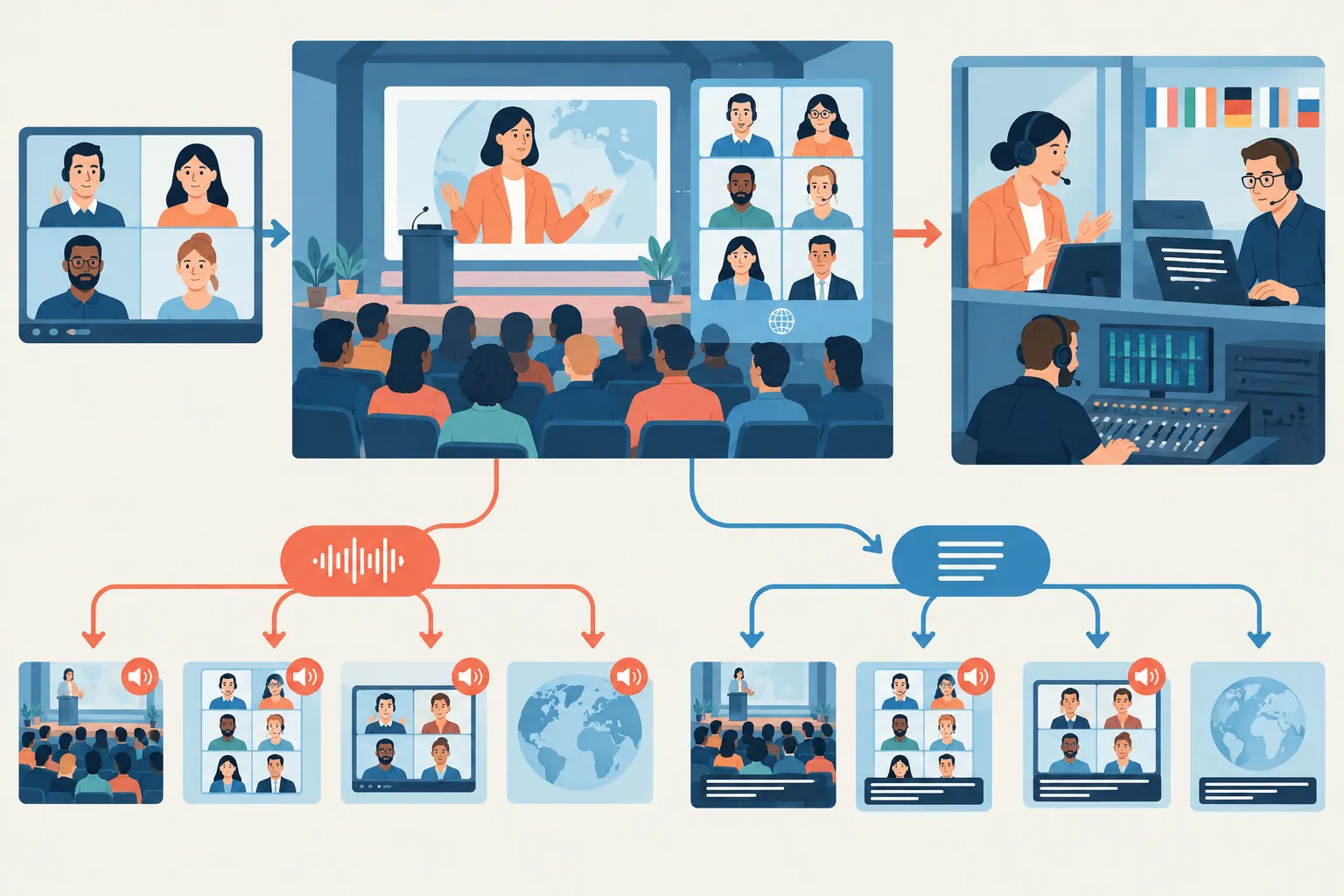
A companion app may translate more languages or produce bilingual notes. It also adds another audio route and a vendor with access to meeting content; attendees may have to install it. Make sure each group knows whether it will hear the original audio or the translated voice. An app running beside Meet may not send that voice to your webinar stream. The same delivery problem can arise with Microsoft Teams.
Where Google Meet real time translation fits
|
Meeting type |
Practical starting point |
When to add a professional service |
|---|---|---|
|
Recurring bilingual team check-in |
Meet translated captions or speech translation if the plan and pair fit |
When participants need terminology support or cannot reliably read the screen |
|
Multilingual all-hands or webinar |
Audience-specific caption and audio access plan |
When several audience languages need simultaneous access, or replay assets matter |
|
Contract, HR, healthcare, or safety discussion |
Qualified human interpreter appropriate to the setting |
From the outset when a mistaken nuance could affect rights, consent, health, or safety |
|
Conference panel or hybrid event |
Production plan for room and remote audio, captions, and language channels |
When attendees need the same experience on-site and online |
|
Accessible public-facing event |
Live captions appropriate to the audience and event |
When an attendee requests CART or the event requires reliable real-time captioning |
In a webinar rehearsal, test the instructions from the host and the audience Q&A, along with the presentation. Include names and text on slides. Then decide how you will make the recording usable afterward: Meet’s speech translation will not produce translated subtitles or voiceover for the published version.
A pre-event decision checklist
Rehearse with the people and equipment you expect to use at the event:
-
Map each audience group: Ask which language they understand and whether they need audio, captions, or both. Include deaf and hard-of-hearing attendees in that plan.
-
Test with attendee accounts: Use the actual host edition, participant devices, intended languages, and method of joining. A setting available to the organizer is not proof that every attendee will get the intended output.
-
Run the real program: Have speakers change turns, show slides, ask questions, and use names and specialist terms. Note where captions lag or an interpretation channel becomes hard to follow.
-
Plan the replay separately: Specify who will provide captions, translated subtitles, a translated transcript, or voiceover for material distributed after the meeting.
-
Assign an owner and a fallback: Give someone responsibility for monitoring access during the event, and have a way to pause, repeat, or switch to the arranged human service if comprehension breaks down.
If someone cannot follow the rehearsal, arrange another way to deliver their language or captions before the event.
When to add interpreters and CART
A professional interpreter can ask a speaker to clarify a term or correct an unclear answer. That is useful in negotiations, personnel matters, worship services, complex panels, and safety briefings, where context matters. The interpreter needs clean audio, and each remote or in-room listener needs a way to hear their language.
CART (Communication Access Realtime Translation) uses a human to produce live captions. Despite the name, it ordinarily captions speech in the same language. Request it when an attendee needs readable, accurate text. A live captioner can also manage technical terms, speaker changes, and corrections.
For a hybrid conference, someone has to plan the microphones, audio mix, listening devices or links, and caption displays. A technician then needs to keep those feeds running. Team Stream can coordinate that equipment and support alongside professional interpreting, live captioning, written translation, subtitling, and voiceover. Its human and AI-enabled services give teams options for routine internal calls and public events where an error carries more risk.
Conclusion
Use Google Meet translation for a meeting that fits its language coverage, plan, and attendee needs. Captions help people read along; speech translation lets them listen in a supported language pair. If participants need dependable access across several languages or a usable replay, ask Team Stream to plan the interpreting, captioning, and recorded deliverables together.
FAQ
How to translate Google Meet?
On an eligible account, use translated captions for on-screen text in another language. If your plan and language pair support speech translation, participants can instead hear translated audio during the meeting. Decide which output your attendees need before choosing a feature.
Can I translate a video in real-time?
A live Google Meet video call can offer translated captions or supported speech translation while participants are in the meeting. That does not mean the translated audio is included in the recording, so a translated replay needs a separate production plan.
Can Google Meet transcribe in real time?
Meet can display live captions as participants speak, but captions, translated captions, and a saved transcript are different outputs. If your team needs a durable, accurate event record, specify a transcription or captioning deliverable separately.
