

CART real time captioning puts a professional captioner’s text in front of attendees as people speak. If you’re producing a conference or webinar, book the captioner while there’s still time to sort out audio and test the display. You can keep built-in automatic captions available, but don’t use them in place of a requested human-captioned accommodation.
What CART real time captioning means at a live event
CART stands for Communication Access Realtime Translation. A trained captioner converts the spoken word into real-time text for a viewer’s device or an event display. In this name, “translation” means turning speech into text; the captioner does not necessarily change languages.
The captioner needs to hear the stage, room questions, remote panelists, and videos. Captioning provides text so attendees who are deaf, late-deafened, or have hearing loss can follow along. It can also help someone seated near a noisy exhibit or listening in a second language.
The National Court Reporters Association sets this skills benchmark in its CART captioner checklist. It does not guarantee that every event feed will reach that level:
“Write realtime at 99 percent accuracy on 180 wpm literary (minimum).” – National Court Reporters Association
You might project captions onto a screen for a keynote, while someone in a small meeting may prefer a private feed. In a webinar, the platform and the provider’s connection determine where attendees find the text. Test the route from their side.
CART vs. automatic captions and closed captioning
What is live captioning?
“Live captioning” tells you when the text appears, not who wrote it. With CART, a professional listens and writes; automatic speech recognition (ASR) uses software. “Closed” tells you that viewers can turn the captions on or off. Either a human or software can produce that caption track.

|
Option |
Who produces the text |
Typical event use |
Key consideration |
|---|---|---|---|
|
CART / human real-time captioning |
A trained captioner listens and writes live |
Requested access for a conference, webinar, panel, or meeting |
Arrange audio, terminology, and a text delivery route in advance |
|
Automatic live captions |
Speech-recognition software |
General convenience or additional live access |
Errors can increase with poor sound, specialized language, or overlapping speech |
|
Closed captions |
Human or automated text, shown in a viewer-controlled caption track |
Livestreams, webinars, and recordings with a compatible player |
“Closed” says how captions are displayed, not whether they were created by CART |
|
Open captions |
Human or automated text visible to everyone |
Venue screens or a video feed with text burned into the picture |
Viewers cannot switch them off |
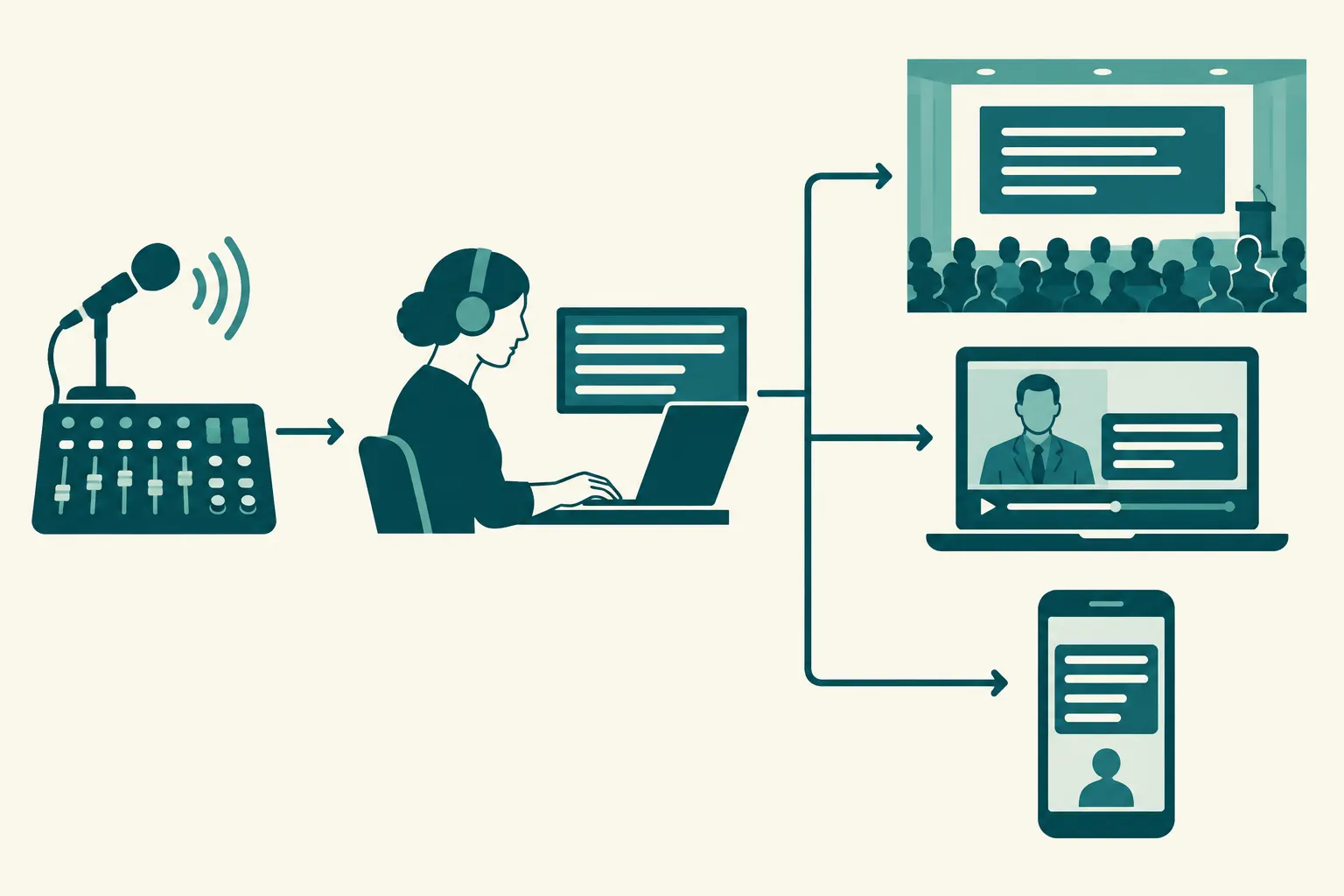
The captioner can send live text into a player with viewer-controlled captions, or to a personal device or projected screen. Before you announce that captions are available, try the display as an attendee would.
When should you request CART?
If a participant requests CART, ask which display works for them and start arranging the service. The U.S. Department of Justice lists CART among communication aids under the Americans with Disabilities Act (ADA); the suitable aid depends on the communication and the person’s needs. Automatic captions, an ASL interpreter, and a post-event transcript serve different purposes. An interpreter provides sign-language access; CART provides text. Some participants may need both.
You may also book CART captioning services for technical panels, broadcasts, and hybrid sessions before anyone requests an accommodation. Send the provider names and subject matter terminology, and plan for rapid speaker changes and room questions. If you record the session, commission edited, synchronized captions for the video separately.
|
Event format |
Decide before booking |
|---|---|
|
In-person conference |
Where text appears, sightlines, whether an attendee needs a personal feed, and how the captioner hears room questions |
|
Webinar |
Whether captions appear in the platform’s caption controls or in a separate browser window, plus access for attendees joining by phone |
|
Hybrid event |
How local and remote speech enters the captioner’s feed, and whether the room and online audience need different displays |
Plan the captioning handoff before doors open
Give the captioner a clean, complete audio feed
Send the captioner a direct feed from the sound desk or virtual platform where possible. Test audience microphones, remote guests, videos, and the moderator. If the captioner cannot hear a question, they cannot capture it. Have the moderator repeat unmic’d questions and ask speakers to take turns.
Share the run of show, speaker names, session titles, product names, acronyms, and presentation materials in advance. Give the captioner a producer’s contact details for last-minute changes. Preparation helps the captioner handle specialized terms during a fast-moving session.
Confirm where captions appear and who controls them
Decide where the text will go: a platform caption channel, browser link, attendee device, projection screen, or livestream player. Then sign in as an attendee. Turn captions on, read them over slides, and open the feed without producer permissions. If several sessions run at once, make sure each room and stream gets the right feed.
Agree with the provider and platform administrator on who creates the webinar connection and who starts it. If you need captions on the recording, assign the editing work as well. A text transcript is a separate deliverable from timed video captions.
In a Microsoft Teams meeting, Microsoft’s CART setup instructions say to invite the captioner, enable Provide CART captions in the meeting’s Options → Accessibility, then copy the CART link for the captioner’s software. The captioning software must connect through the Teams CART Captions API. Test the meeting as a viewer before sharing instructions with attendees.
Rehearse the failure path
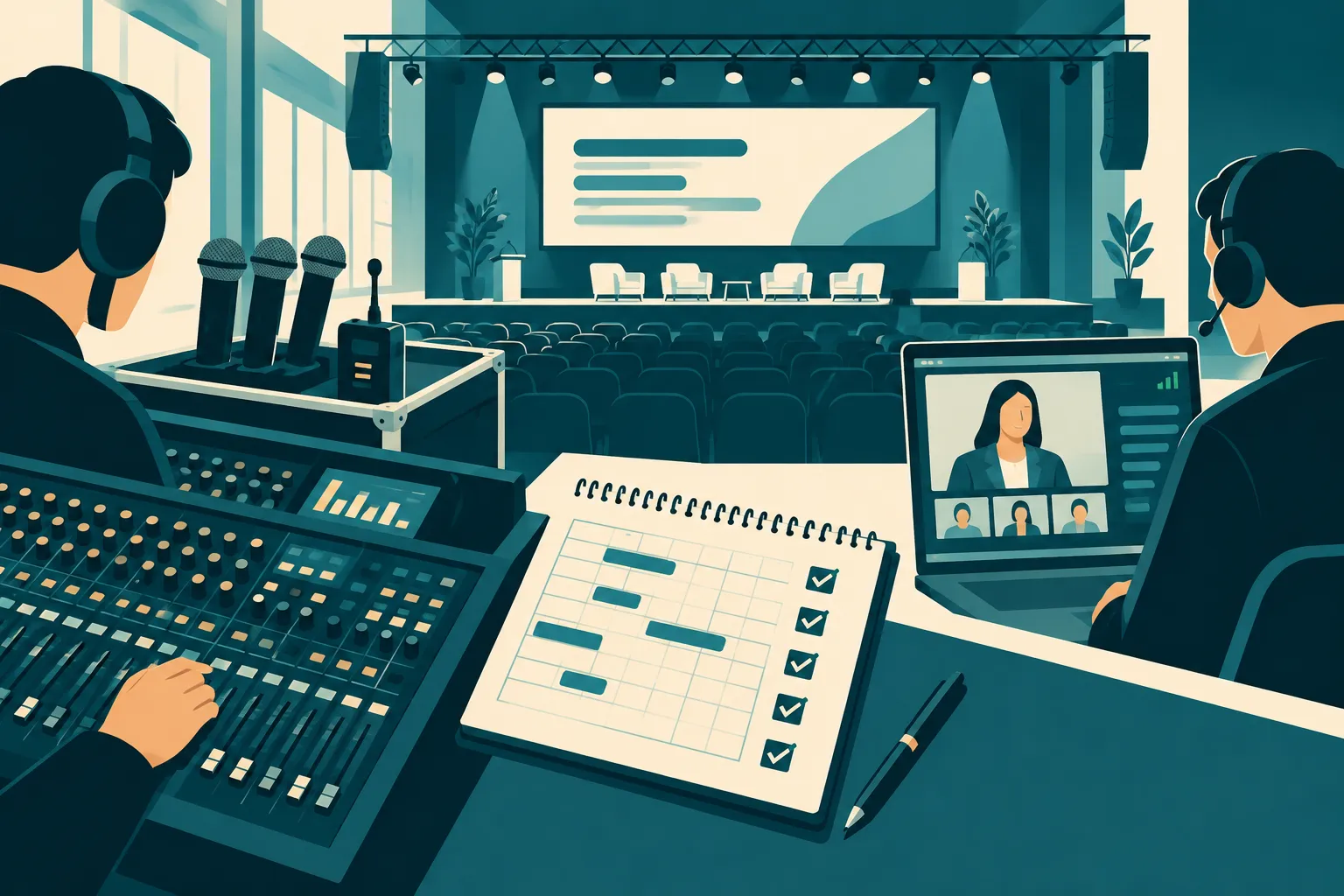
Schedule a pre-event check with the captioner, audio engineer, platform host, and producer. Speak through each microphone, switch between local and remote presenters, play a clip, and look at the captions on attendee devices. Put one producer in charge of contacting the captioner during the event. Give that person a way to restore the feed and update attendees if it stops.
What does CART captioning cost?
An event with one remote caption feed has a different scope from one with several rooms and on-site display support. Ask the provider to price session length, concurrent rooms, remote or on-site delivery, preparation, technical integration, and transcript or recording work. For a long program, include breaks and captioner coverage. Spell out whether you need venue screens, attendee links, or platform-embedded captions.
Get the scope in writing. A quote for a text feed alone excludes the technician and display setup included in a fuller service. Ask about minimum booking periods and who will take calls during the live show, so procurement can compare quotes for the same work.
How to choose a CART provider
Walk through one of your sessions with the provider. You should leave knowing who captions it, how that person hears the audio, where the text appears, and who troubleshoots a broken connection. Ask:
-
Can you staff this format, schedule, and any concurrent rooms?
-
Who gathers vocabulary and presenter materials, and when do you need them?
-
Will the text reach the attendee’s platform, player, personal link, or screen?
-
Who runs the test, and whom do we call if audio or captions drop?
-
Does the quote include live access only, a raw transcript, or edited captions for the recording?
Team Stream offers captioning, interpreting, equipment, and technician support. For a live, virtual, or hybrid event that also needs multilingual access, you can plan those services with one team. Describe your rooms, speakers, and attendee displays when you ask for a proposal.
Make CART part of the event plan
If attendees need a professional to caption speech as it happens, book CART with the audio feed, display route, and rehearsal worked out in advance. Team Stream can help plan those details alongside interpreting and event support for your conference or webinar.
FAQ
What are cart options in Microsoft Teams?
Teams has built-in automatic captions and an option for human-generated CART captions. To use CART, the organizer enables Provide CART captions in the meeting’s accessibility options and sends the connection link to the captioner. Test the display from an attendee account before the session.
What are cart captions on Teams?
A professional captioner produces this live text for a Teams meeting or event. That differs from speech-recognition text generated by the platform. The captioner needs the meeting audio, and the organizer needs to make the display accessible to participants.
Is cart the same as closed captioning?
No. CART is a human real-time speech-to-text service. Closed captioning means the viewer can switch the text on or off. Depending on the setup, you can deliver CART as closed captions or show it on a separate device or venue screen.
What’s the difference between ASL and closed captioning?
An ASL interpreter conveys speech in American Sign Language. Closed captions show text that the viewer can switch on or off. CART can supply live text for that display; ask the attendee which access method works for them.
